Last verified: April 2026 (EPFO portal update)
If you’ve forgotten your UAN password or can’t log in to your EPFO account, you can reset it online in a few minutes using your registered mobile number. This guide shows the exact steps to reset or recover your EPF login password, along with what to do if the reset doesn’t work due to OTP issues, Aadhaar mismatch, or mobile number problems.
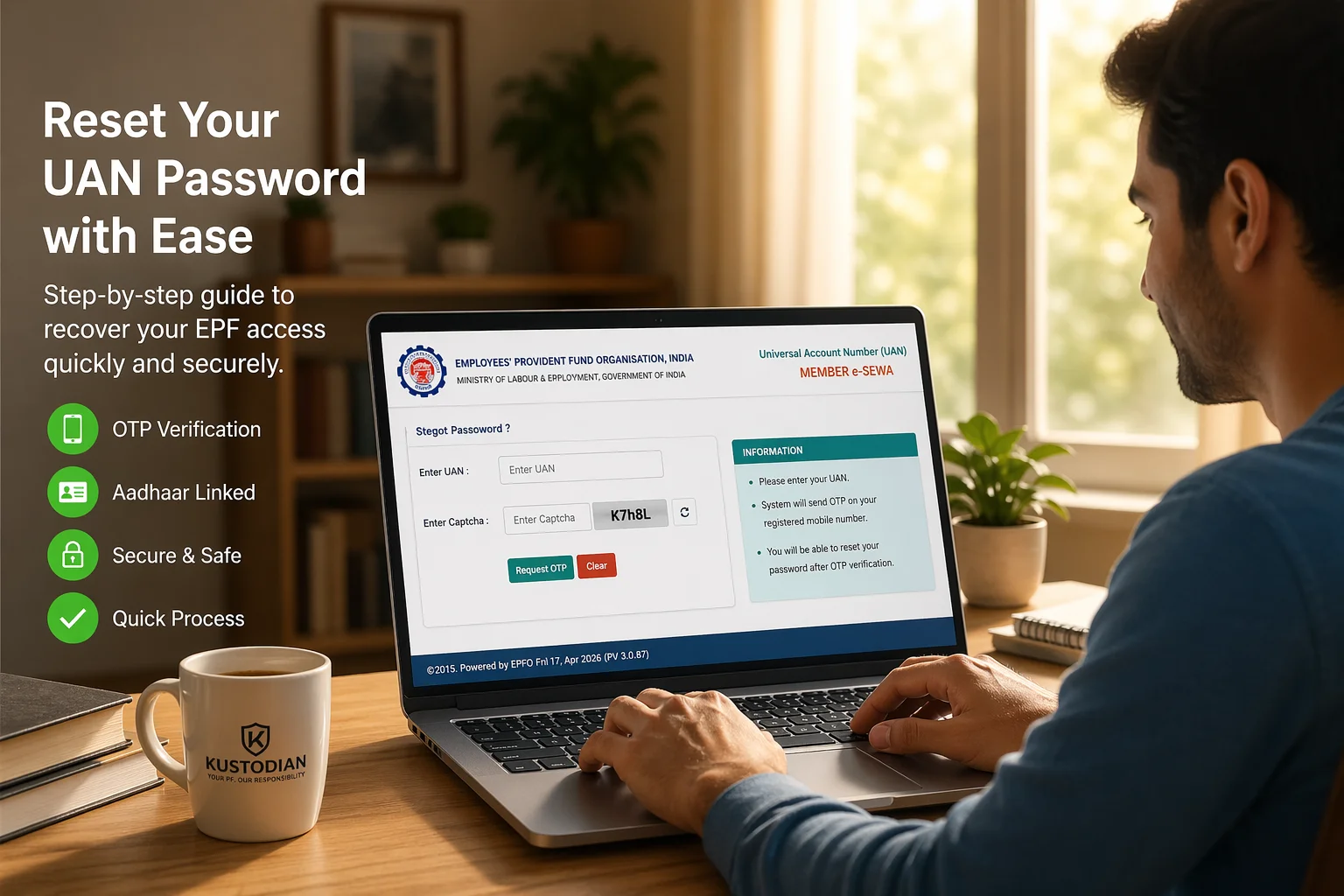
Still stuck or unsure what’s wrong? Before you try resetting again, it helps to identify the exact issue: Not receiving OTP, Aadhaar mismatch, Old or inactive mobile number, or Multiple UAN records.
1. How to Reset UAN Password Online
Follow these steps to reset your UAN password online in minutes:
- Go to the EPFO Member Portal (UAN login page)
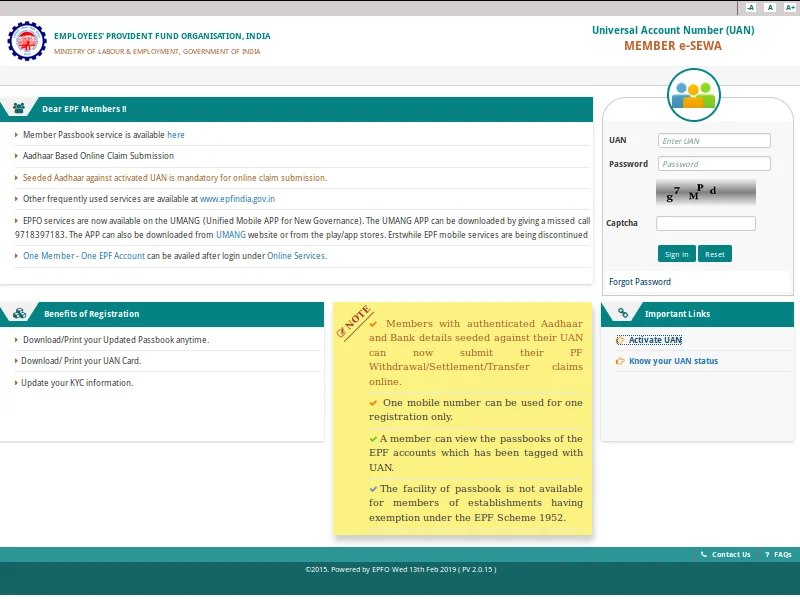
- Click on “Forgot Password”
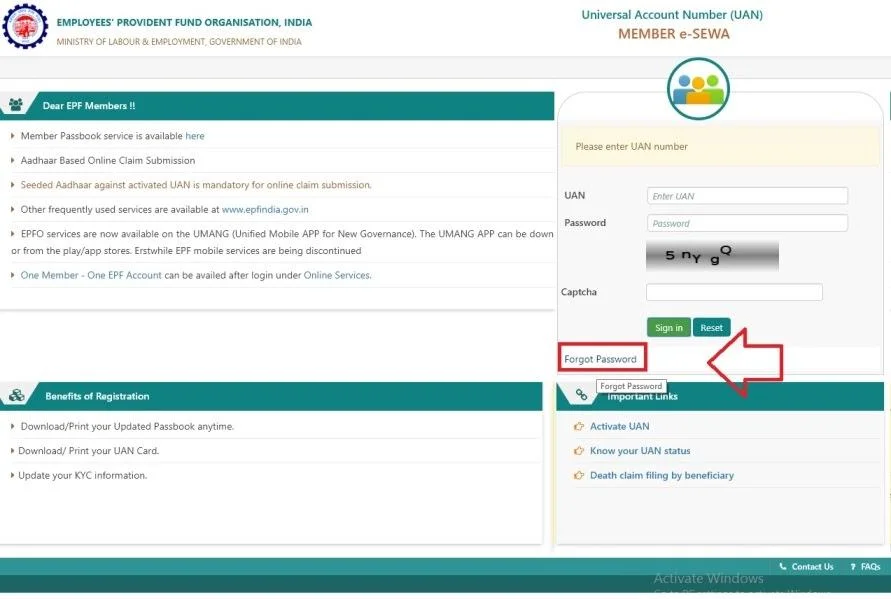
- Enter your UAN and captcha
- Verify the OTP sent to your registered mobile number
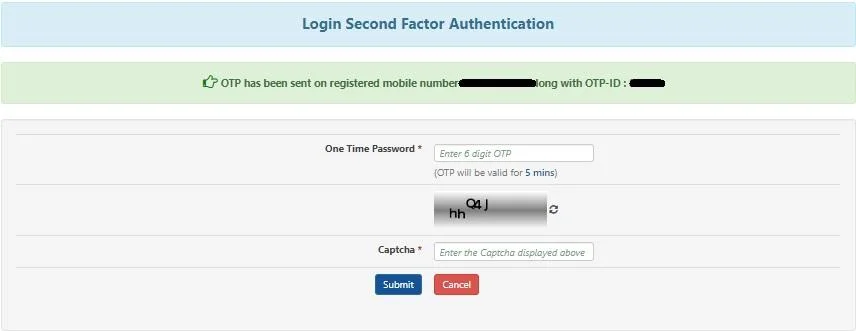
- Enter and confirm your new password
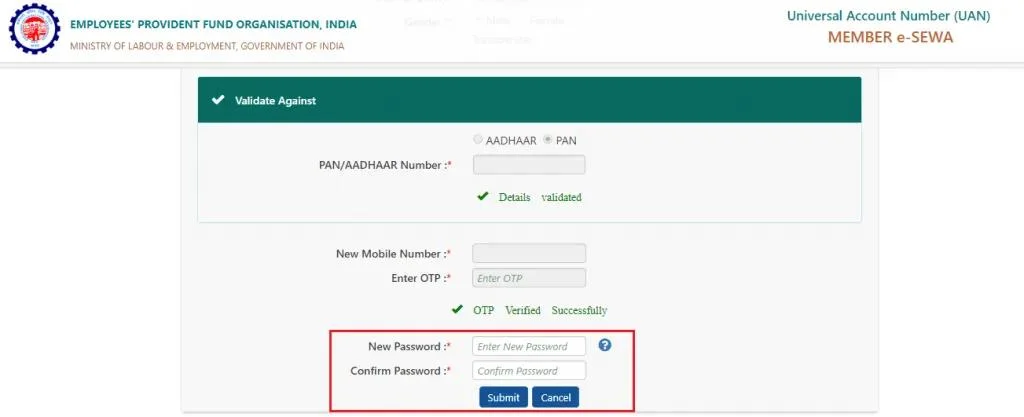
Estimated time: 2–5 minutes
This is the standard way to reset your UAN password online through EPFO. This process works only if your mobile number is active and linked to your UAN.
Why Your New UAN Password May Not Be Accepted
Sometimes, the EPFO portal rejects a new password even after OTP verification. This usually happens because:
- The password does not meet the required format
- Recently used passwords cannot be reused
- Missing special characters or number combinations
Make sure your new password:
- Includes letters, numbers, and special characters
- Is different from your previous passwords
2. Forgot UAN Password? Here’s How to Recover It
If you’ve forgotten your UAN password, you don’t need your old password to reset it. The EPFO portal allows you to recover access using OTP verification on your registered mobile number.
If your account is temporarily blocked after multiple failed login attempts, wait a few minutes before using the reset option again.
Quick fix: If you can’t remember your password, always use the reset option instead of trying multiple login attempts, as repeated failures may temporarily block access.
3. Ways to Reset Your EPF / UAN Password
Choose the method that applies to your situation:
i. Using Registered Mobile Number (Standard Method)
This is the default and fastest way to reset your UAN password. After entering your UAN and captcha, you’ll receive a one-time password (OTP) on your registered mobile number. Once verified, you can set a new password immediately.
Most successful resets happen through this method when:
- Your mobile number is active
- Your UAN is correctly linked
- Your Aadhaar details match EPFO records
ii. Using Aadhaar-Linked Mobile Number
If your Aadhaar is linked to your UAN, the reset process depends on Aadhaar-based verification. In such cases, the OTP is sent to the mobile number linked with Aadhaar, not necessarily the one originally used during UAN registration. This is where many users get confused—if your Aadhaar mobile number is outdated or different, the OTP may not reach you.
iii. Using Aadhaar Face RD App (Latest Method)
In some cases, especially when OTP verification fails, the EPFO system may allow authentication using Aadhaar-based face verification. This requires the Aadhaar Face RD app and a device with camera access enabled.
Quick fix: Face authentication not working
- Install the Aadhaar Face RD app
- Allow camera permissions
- Ensure proper lighting while scanning
In newer flows, this authentication may also be routed through the UMANG 2.0 app, which integrates EPFO services with Aadhaar verification. This may vary depending on your device and EPFO system flow.
iv. Reset UAN Password Without Access to Registered Mobile Number
If you don’t have access to your registered mobile number, you won’t be able to complete the password reset fully online. In this case, OTP verification will fail, even if your UAN and Aadhaar details are correct. To resolve this, you typically need to:
- Update your mobile number through your employer
- Or request a correction in the EPFO records
This step often takes time, which is why many users get stuck at this stage.
Or
v. Reset Through Employer Assistance
If your password reset is blocked due to incorrect KYC details (name, date of birth, or mobile number), your employer can help update your records. Once the corrected details are approved in the EPFO system, you can retry the password reset process successfully.
This is commonly required in cases where:
- Aadhaar details don’t match EPFO records
- Your mobile number is outdated
- Your UAN was created with incorrect information
Before You Proceed: Quick Check
If your password reset failed, check:
- Did you receive the OTP?
- Is your Aadhaar linked correctly?
- Do you have access to your registered mobile number?
If any of these are not working, your reset may fail until the issue is resolved.
4. UAN Password Reset Not Working? Common EPFO Login Issues & Fixes
Even if you follow all the steps correctly, the password reset may still fail due to underlying issues in your EPFO login or account records. Here are the most common problems and what they mean:
| Issue | Likely Cause | What to Do |
|---|---|---|
| OTP not received | Mobile/KYC issue | Retry, check Aadhaar linkage |
| Aadhaar mismatch | Data inconsistency | Update KYC details |
| Old mobile number | No OTP access | Update via employer |
| Portal error | System delay | Retry after some time |
Aadhaar Mismatch: Minor vs Major Issues
Not all Aadhaar mismatches are the same.
- Minor mismatch: small spelling differences in name
- Major mismatch: incorrect date of birth or missing KYC
Minor issues may still allow OTP verification, but major mismatches usually block the reset process. In such cases, you may need to submit a Joint Declaration through your employer to correct EPFO records before retrying.
Quick Fix: OTP Not Received
- Wait 5–10 minutes and retry
- Ensure your Aadhaar is linked correctly
- Check if your mobile number is active
If the OTP still doesn’t arrive, you’re likely facing one of these:
- Your registered mobile number may be outdated in the EPFO records
- Your registered mobile number is inactive
- Aadhaar is linked to a different number
- Multiple UAN records are causing conflicts
👉 If this keeps happening, your issue may not be fixable through a standard reset
Asked for “Old Password” After Reset? (Common System Issue)
In some cases, the EPFO portal asks for your “old password” immediately after you’ve reset it. This confuses many users and blocks access even after a successful reset.
What actually works:
Enter your newly created password in the “old password” field.
Why does this happen?
- Temporary system cache delay
- The backend is not updated instantly
Why this matters:
This is a known system behavior—not a mistake on your end.
If this still doesn’t work, clear your browser cache or try using Incognito Mode. The EPFO portal may retain your previous session, which can block login even after resetting the password.
🔗 Important:
If your reset is still not working, your issue is likely related to OTP failure, Aadhaar mismatch, or outdated mobile records.
👉 Read the detailed fixes here: UAN Password Reset Not Working
5. Special Cases That Can Block UAN Password Reset
i. Inactive or Deactivated UAN
If your UAN is inactive or not properly activated, the password reset process may fail or not proceed beyond initial steps. This usually happens when:
- Employment records are incomplete
- UAN activation was not completed properly
ii. Multiple UANs Linked to the Same User
In some cases, multiple UANs are created due to job changes. This can cause:
- OTP being sent to a different record
- login or reset inconsistencies
Resolving duplicate UANs is necessary before the reset process works reliably.
iii. Issues During PF Withdrawal or Pension Processing
If you are trying to reset your password while applying for PF withdrawal or pension-related claims (such as Form 10C), additional verification steps may apply. This can delay or block password reset temporarily, especially if:
- Digital Life Certificate verification is pending
- KYC details are under review
6. Kustodian Insight (2026)
Based on analysis of 1,000+ EPF cases handled in 2025-26:
- 52% of password reset failures were due to outdated mobile numbers
- 31% were caused by Aadhaar mismatch
In many of these cases, users were unable to resolve the issue through the EPFO portal alone and required record corrections before access could be restored.
7. Frequently Asked Questions
These answers are based on common EPFO user issues observed across multiple cases.
Q. How do I reset my EPFO password?
You can reset your EPFO (UAN) password through the EPFO Member Portal by using the “Forgot Password” option. Enter your UAN, verify the OTP sent to your registered mobile number, and set a new password.
Q. What if I forgot my PF login password?
If you’ve forgotten your PF login password, you can recover it using the same reset process. Your old password is not required—just verify your identity via OTP and create a new password.
Q. Can I reset UAN password without mobile number?
No, the password reset process requires OTP verification. If you don’t have access to your registered mobile number, you will need to update it through your employer or EPFO before resetting your password.
Q. How long does UAN password reset take?
In most cases, the reset is instant once OTP verification is successful. However, if there are issues with your mobile number or Aadhaar details, the process may take longer to resolve.
Q. What if OTP is not received during password reset?
If you don’t receive the OTP:
- Wait a few minutes and retry
- ensure your mobile number is active
- Check Aadhaar linkage
If the issue continues, your mobile number may be outdated in EPFO records.
Q. Can I reset my UAN password if I lost my SIM card?
Yes, but not directly through the standard OTP process.
If your registered mobile number is inactive, you may need to:
- Update your mobile number through your employer
- or use Aadhaar-based authentication (such as Face RD, if available)
Until your mobile number is updated, password reset may not work reliably.
Q. Why does EPFO ask for the old password after a reset?
This happens due to a temporary system delay. In such cases, you can enter your newly created password in the “old password” field to proceed.
What Happens After You Reset Your UAN Password
After resetting your password:
- It may take a few hours for the new password to sync across EPFO systems
- Access to certain services (like passbook or claims) may be temporarily delayed
- Login sessions may require fresh authentication
If you are unable to access your passbook or services immediately, try again after some time.
Important: Avoid Fake EPFO Websites
Always use the official EPFO website (ending in .gov.in) when resetting your password.
Avoid clicking on unknown links or third-party sites that ask for your UAN details, as these may be fraudulent.
Still Unable to Reset Your UAN Password?
If your UAN password reset isn’t working even after following all the steps, the issue is usually related to:
- Incorrect KYC details
- outdated mobile number
- or deeper EPFO record inconsistencies
Instead of retrying multiple times, it’s better to first identify what’s actually blocking your access.
You can start with a quick EPF audit to understand the exact issue and the fastest way to resolve it. This helps avoid repeated failed attempts—especially if you’ve already tried resetting your password multiple times without success.