Getting your Universal Account Number (UAN) is one of the most important steps in managing your Employees’ Provident Fund (EPF) in India. But many employees discover that simply having a UAN is not enough; it must first be activated on the EPFO Member Portal or through the UMANG app before you can access services like checking your PF balance, transferring accounts, updating KYC, or filing withdrawal claims.
In 2026, the Employees' Provident Fund Organisation (EPFO) strengthened its digital verification systems. UAN activation now requires Aadhaar-based OTP verification and strict data matching between employer records, Aadhaar details, and the EPFO database. If there is even a small mismatch in your name, date of birth, or mobile number, the system may show errors such as “Invalid Details” or “OTP Not Received.”
This complete step-by-step 2026 guide explains how to activate your UAN correctly, what documents you need, how Aadhaar authentication works, and how to fix the most common activation errors.
Contents
1. The 2026 Context: Why Activation is Different Now
2. Stage 1: The Pre-Flight Essentials (The "Must-Have" List)
3. Stage 2: Document Readiness & 2026 Compliance
4. Stage 3: The Step-by-Step Activation Protocol
5. Stage 4: Navigating the "Invalid Details" Crisis
6. Stage 5: Post-Activation — Making Your Account "Claim-Ready"
7. Stage 6: Security Protocols for 2026
8. Troubleshooting Matrix (2026 Update)
9. Special Scenarios: International Workers & Pensioners
10. Conclusion: Taking Control of Your Financial Future
1. The 2026 Context: Why Activation is Different Now
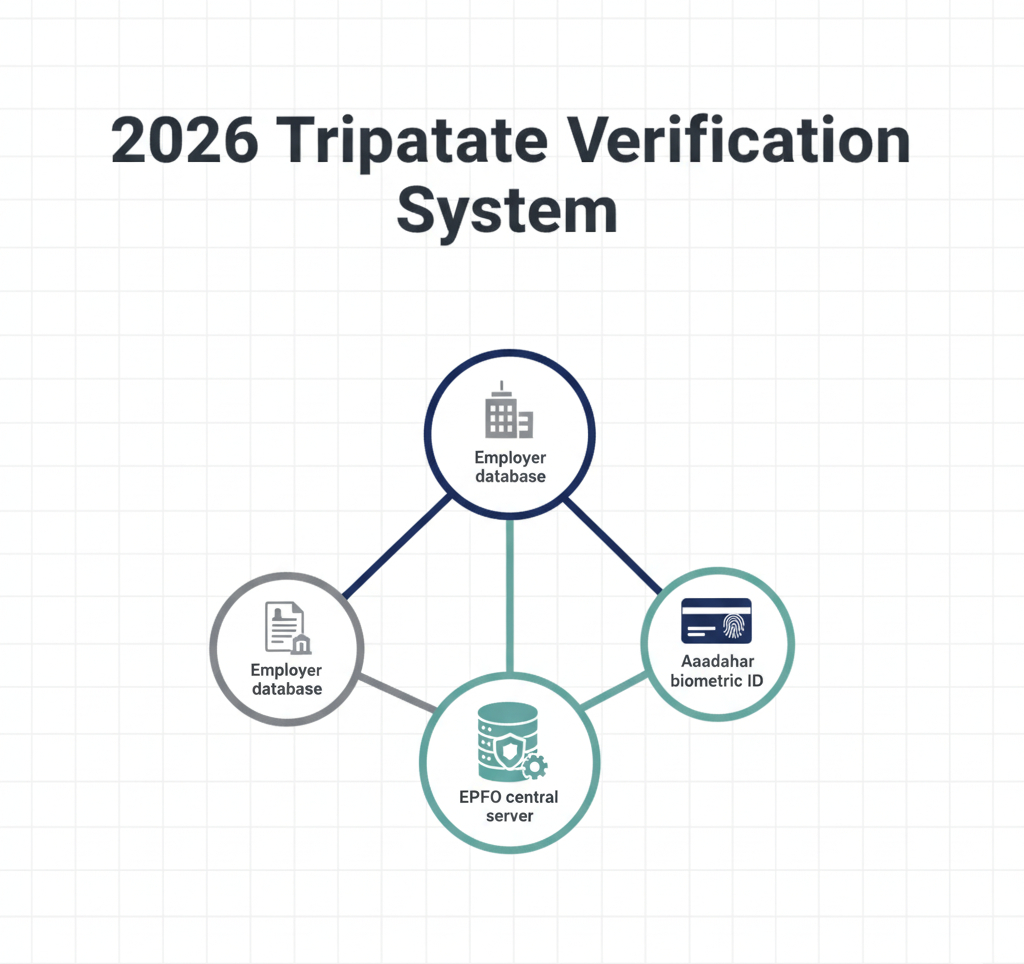
In 2026, most UAN activation failures are no longer technical glitches; they are identity mismatches between Aadhaar, employer records, and EPFO data. In 2024 and 2025, the EPFO faced a crisis of identity fraud. To combat this, the 2026 protocol mandates consistency between employer records, Aadhaar details, and EPFO database entries.
For a UAN to be activated today, the system must see a perfect 1:1:1 match between:
- Your Employer's records (The data uploaded during your onboarding).
- The UIDAI (Aadhaar) database (Your biometric and demographic source).
- The EPFO Central Server (The host of your UAN).
If you have been struggling with "Invalid Details" or "OTP Not Received," you aren't alone. In 2026, these are rarely system glitches; they are Identity Mismatches. This guide solves that.
If you have multiple UANs from previous jobs, follow our 2026 UAN Consolidation Guide to merge your balances and prevent funds from becoming dormant.
2. Stage 1: The Pre-Flight Essentials (The "Must-Have" List)
Before you even attempt to log in, you must audit your data. In 2026, the EPFO system triggers a "security lockout" Multiple incorrect attempts may trigger temporary system restrictions.
1. The UAN (12-Digit Identity)
Your UAN is provided by your employer. If you don't have it, check your salary slip or the "Know Your UAN" feature on the portal.
Note: In 2026, UANs are no longer "generated" by employees; they are strictly allotted by the employer or the system during Aadhaar-seeding.
2. The Aadhaar-Linked Mobile Number
This is the single biggest point of failure. In 2026, the OTP for UAN activation is no longer sent to the "Profile Mobile Number" but strictly to the Aadhaar-linked mobile number.
- Action: Verify your linked number by visiting the UIDAI portal first. If you have changed your SIM, you must update your Aadhaar record before attempting UAN activation.
3. The Aadhaar FaceRD App (For Mobile Users)
If you are activating via a smartphone, the system now uses Face Authentication (FAT).
- Requirement: Aadhaar FaceRD may be required for certain face authentication services within government apps. Without this, the UMANG or EPFO apps cannot access your camera for biometric verification.
4. Data Consistency Audit
Open your Aadhaar card and compare it to your company’s HR portal.
- Name: Is it "Aravind S" or "Aravind Swamy"?
- DOB: Does it match the Day/Month/Year format?
- Gender: Surprisingly, gender mismatches are a common reason for 2026 activation failures.
3. Stage 2: Document Readiness & 2026 Compliance
The table below outlines the mandatory versus recommended documentation for the current year.
| Document | Status (2026) | Technical Requirement |
| Aadhaar Card | Mandatory | Must be "Seeded." Physical card not needed; only the number. |
| PAN Card | Mandatory for KYC | Must be linked to Aadhaar. Used for tax-free withdrawals. |
| Active Mobile SIM | Mandatory | Must be able to receive SMS; international roaming must be active for NRIs. |
| Bank Passbook | Recommended | Required for the "Claim-Ready" phase (Stage 6). |
| Aadhaar FaceRD App | Mandatory for Mobile | Enables biometric "Liveness" checks. |
4. Stage 3: The Step-by-Step Activation Protocol
There are two primary ways to activate your UAN in 2026. We recommend the UMANG App for individual users and the Web Portal for those with complex data cases.
Method A: The Web Portal (Recommended for Desktops)
- Visit the Unified Portal: Go to the official EPFO Member e-Sewa Portal.
- The "Activate UAN" Link: Look under the "Important Links" section on the bottom right.
- Data Entry: Enter your UAN, Aadhaar Number, Name, and DOB.
- The CAPTCHA: The 2026 CAPTCHAs are case-sensitive and time-bound (expires in 60 seconds).
- Authorisation PIN: Click "Get Authorisation Pin." An OTP will arrive on your Aadhaar-linked mobile.
- The Final Trigger: Enter the OTP and click "Validate OTP and Activate UAN."
Method B: The UMANG App (The 2026 "Face Auth" Route)
The EPFO now favours the UMANG app because it uses the front camera to verify that the person activating the UAN is the same person on the Aadhaar card.
- Log in to UMANG: Use your mobile number and MPIN.
- Search EPFO: Click on the "EPFO" department icon.
- Face Auth Activation: Select the service titled "UAN Activation via Face Authentication."
- The Scan: The app will open your front camera.
5. Stage 4: Navigating the "Invalid Details" Crisis
If you see the message "Information provided does not match with Aadhaar records," stop. Do not try again. If the EPFO portal shows “Invalid Details”, do not keep retrying repeatedly. Multiple failed attempts may temporarily block your activation request.
The Joint Declaration (JD) Fix
In previous years, you had to visit the PF office. In 2026, the process is $100\%$ Online.
- Log in to the Member Portal (even if not activated, some profiles allow "Profile Correction" requests).
- Submit JD: Upload a scanned copy of your Aadhaar and a secondary ID (PAN/Passport).
- Employer Approval: Your HR will receive a notification on their "Employer Portal." They must "E-Sign" the request.
- Field Office Approval: The PF Commissioner’s office typically approves this in 3-7 working days.
- Retry Activation: Once the data is corrected, your activation will go through on the first attempt.
If you have multiple UANs from previous jobs, follow our 2026 UAN Consolidation Guide to merge your balances and prevent funds from becoming dormant.
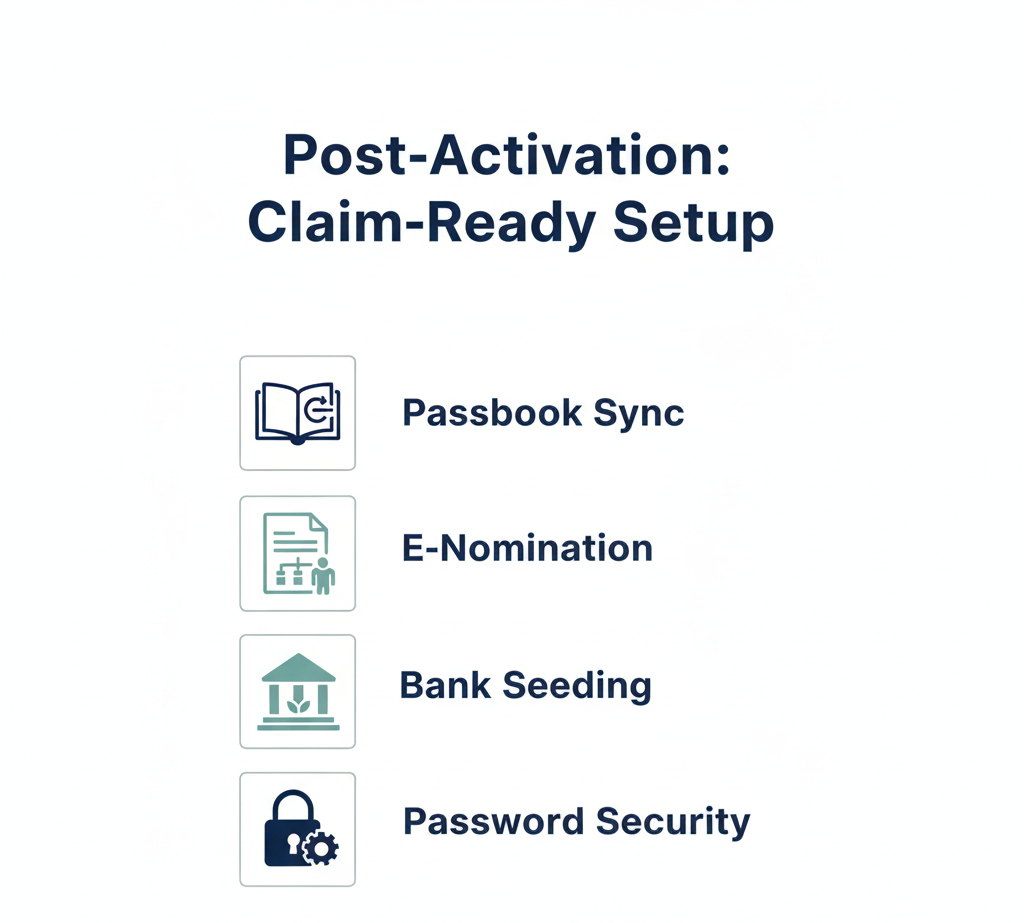
6. Stage 5: Post-Activation - Making Your Account "Claim-Ready"
Activation is just the "On" switch. An active UAN that isn't "Claim-Ready" is useless when you need an emergency medical advance or want to withdraw your pension.
6.1 The 24-Hour Passbook Delay
A common 2026 complaint is: "I activated my UAN, but I can't see my balance!"
The Fact: The Passbook module is a separate server. It takes 6 to 24 hours for a newly activated UAN to sync with the financial ledger. Check back the next day.
6.2 E-Nomination: The 2026 Mandate
In 2026, the EEPFO strongly recommends adding an e-nomination to simplify future claims.
- How to do it: Go to Manage > E-Nomination. You will need a digital photo of your nominee and their Aadhaar number. You must E-Sign this using Aadhaar OTP.
6.3 Bank Account Seeding
Ensure your current bank account is linked.
- Critical Check: The Name on your Bank Account must match your UAN/Aadhaar exactly. If your bank has "Aravind S" and your UAN has "Aravind Swamy," the online claim will auto-reject.
7. Stage 6: Security Protocols for 2026
Cybersecurity for PF accounts has been tightened. Follow these rules to keep your retirement corpus safe:
- Password Complexity: Your new password must contain at least one uppercase letter, one special character, and one number (e.g., Pf@2026Secure).
- Two-Factor Authentication (2FA): Every login now requires an OTP. Never share this with anyone claiming to be from "EPFO Customer Service."
- Device Binding: If you use the UMANG app, the EPFO now "binds" your account to that specific device. If you change phones, you may need to re-authenticate via Face Auth.
8. Troubleshooting Matrix (2026 Update)
Many users encounter common issues while activating or accessing their UAN in 2026. Most of these problems are not technical failures but simple verification or system synchronization issues. The troubleshooting matrix below explains the likely causes and practical solutions to resolve them quickly.
| Problem | Root Cause | 2026 Professional Solution |
| "OTP Not Received" | Aadhaar Linkage Issue | Check if your mobile number is updated in the "National Aadhaar Portal" (UIDAI). |
| "UAN already active" | Previous Employment | Use the "Forgot Password" link. You likely activated it years ago at your first job. |
| "Technical Error" | Server Congestion | The EPFO servers undergo maintenance daily between 11:00 PM and 2:00 AM IST. Avoid this window. |
| "Establishment Closed" | The company shut down. | You can still activate via Aadhaar Face Auth as long as your UAN was generated before the company closed. |
9. Special Scenarios: International Workers & Pensioners
International workers and pensioners may face slightly different EPF procedures compared to regular members. In such cases, withdrawal eligibility, contribution rules, and documentation requirements can depend on bilateral social security agreements or pension settlement provisions.
Because these situations often involve additional verification or cross-border compliance, it is important to review the applicable EPFO guidelines before initiating claims or transfers.
- International Workers (IWs): If you are an Indian citizen working abroad, you can activate your UAN using your Indian Aadhaar-linked mobile (with international roaming) or via the Face Auth method on UMANG, which is the preferred method for NRIs in 2026.
- Pensioners (EPS): If you are activating a UAN for pension purposes, ensure your PPO (Pension Payment Order) number is also linked in the "Service History" section after activation.
10. Conclusion: Taking Control of Your Financial Future
The UAN system in 2026 is designed for efficiency, but it demands accuracy. By following this checklist, you have moved beyond the "Invalid Details" loop that stalls millions of users.
Summary Checklist for Success:
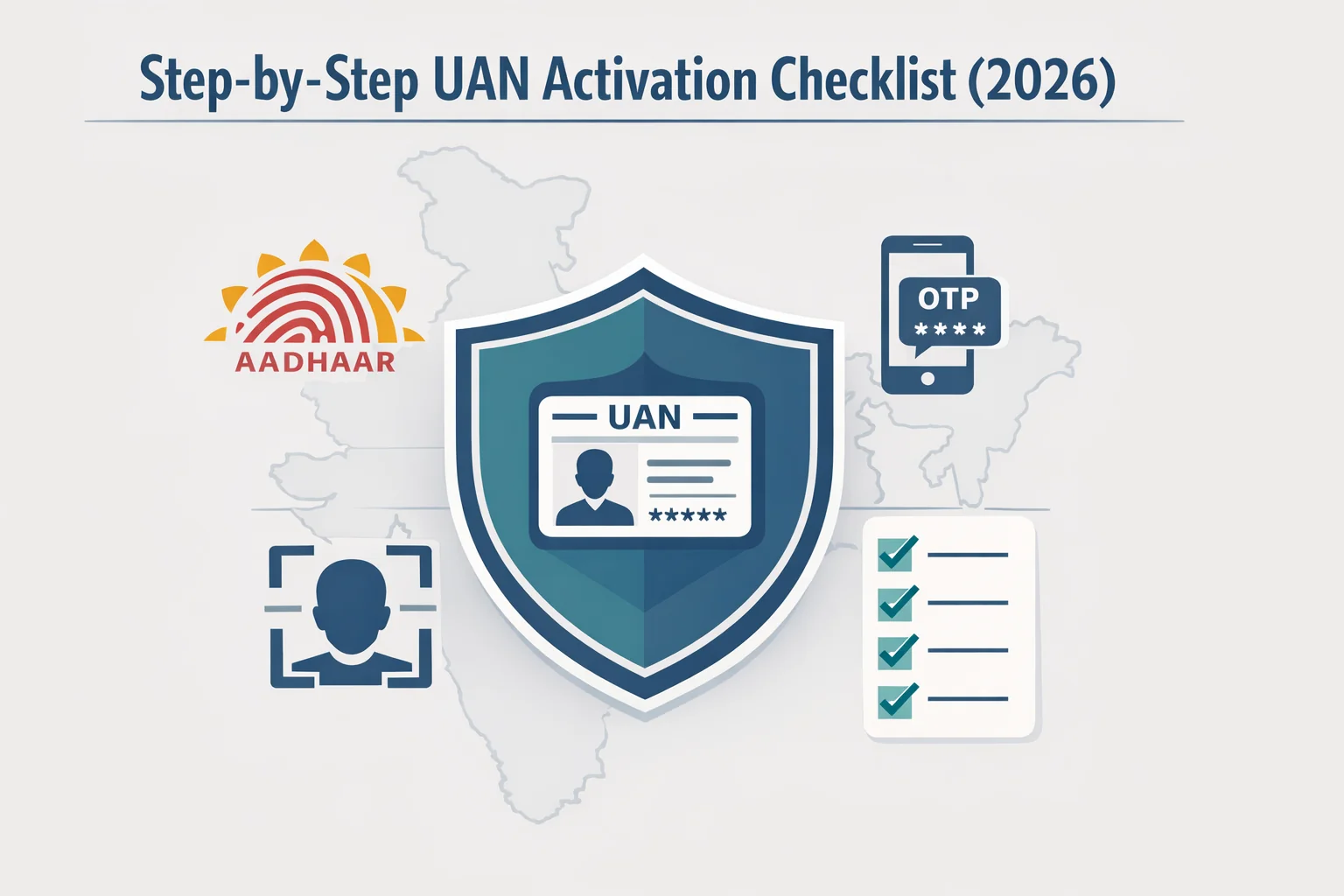
- Verify Aadhaar-Mobile link.
- Install Aadhaar FaceRD (for mobile users).
- Perform Face Auth or OTP Validation.
- Change your password and wait 24 hours.
- Complete E-Nomination immediately.
Your Provident Fund is not just a deduction on your payslip; it is a compounding asset. Activating your UAN is the moment you take ownership of that asset.
Your Provident Fund is a compounding asset. Activating your UAN is the moment you take ownership. For your next step, read our Step-by-Step EPF Withdrawal Guide (2026) to ensure you're ready for any future claims.
11. Frequently Asked Questions
To help you navigate the latest EPFO 3.0 updates, we’ve answered the most common questions regarding UAN activation in 2026.
How Do I Activate My UAN in 2026 Using Face Authentication?
In 2026, one of the easiest ways to activate your Universal Account Number (UAN) is through Face Authentication using government-supported mobile apps.
To complete this process, first download the UMANG and the Aadhaar Face RD from the Google Play Store. After installing both apps, open UMANG and navigate to EPFO Services.
From the EPFO menu, select UAN Activation via Face Authentication (FAT). You will then be asked to enter your UAN number and the mobile number linked with your Aadhaar record. After verification, the app will launch a live face scan.
During the scan, you may be prompted to blink or slightly move your head so the system can confirm that it is a live person rather than a static image. Once the authentication is successfully verified, your UAN becomes activated and you can access EPFO services such as passbook viewing and PF balance checks.
Why Is the EPFO "Activate UAN" Portal Not Working on My Desktop?
Many users notice that the Activate UAN page on the EPFO Member Portal sometimes fails to load properly on desktop browsers.
In recent years, EPFO has increasingly adopted a mobile-first service model, encouraging users to complete identity verification through smartphone-based authentication methods such as OTP verification and Aadhaar Face Authentication.
If the activation page is not functioning on desktop:
- Clear your browser cache and cookies
- Try accessing the portal using an updated browser
- Disable extensions that may block scripts
- Attempt activation through the UMANG mobile app instead
For many users, completing the activation through the UMANG app tends to be smoother because it integrates directly with Aadhaar authentication systems.
Can I Activate My UAN Without an Aadhaar-Linked Mobile Number?
No. As per current EPFO authentication standards, Aadhaar seeding is mandatory for activating and managing a UAN account.
The OTP required during the activation process is sent to the mobile number registered with Aadhaar. If your current phone number is not linked to Aadhaar records, the verification step will fail.
In such cases, you must update your mobile number by visiting a nearby Aadhaar Enrollment Centre. After updating the number, the change usually reflects in the UIDAI system within a short time, allowing you to complete UAN activation.
What Should I Do If Face Authentication Fails During UAN Activation?
Face Authentication may occasionally fail due to environmental conditions or mismatches between your live image and the photograph stored in Aadhaar records.
Common reasons include:
- Poor lighting conditions
- Strong backlight or shadows on the face
- Camera focus issues
- Outdated Aadhaar photograph
To improve success rates, try completing the scan in a well-lit room with even lighting on your face. Hold the phone steady and ensure your full face remains within the camera frame.
If the authentication repeatedly fails, you may need to update your Aadhaar photograph at an Aadhaar enrollment center. In certain cases, identity verification can also be completed through employer-supported procedures such as the Joint Declaration process within EPFO records.
How Long Does It Take for My PF Balance to Show After Activation?
UAN activation itself is usually completed instantly once authentication is successful. However, access to full EPF account information may take some time to synchronize across EPFO systems.
Typically, your EPF passbook and PF balance become visible within 6 to 24 hours after activation. This delay occurs because multiple backend servers update account access permissions and synchronize contribution records.
If your balance does not appear immediately:
- Wait at least 24 hours
- Log out and log back into the EPFO or UMANG platform
- Check the passbook again after the system refresh
Once synchronization is complete, you will be able to view your contributions, employer deposits, and total PF balance normally.
How Kustodian Helps You Resolve EPF & EPS Rejections
Navigating the EPFO portal in 2026 can be complicated. Kustodian acts as your professional support, helping coordinate between you, your employer, and the PF office. We begin with a 360° digital audit of your EPF records to identify issues such as missing Date of Exit entries, EPS contribution mismatches, or Aadhaar data inconsistencies that commonly cause claim rejections.
For complex cases, we manage the Online Joint Declaration (JD) process, assist with employer approvals, and help prepare the required proof documents. Whether it’s retrieving a pending Annexure K, correcting service history, or merging multiple UANs, our team handles the technical steps. If portal issues persist, we escalate the matter through EPFiGMS grievances and RTI applications, helping resolve cases faster and avoid months of delays.
Disclaimer: This article is for informational purposes only and does not constitute legal or financial advice. Rules may vary based on individual records and EPFO processing.